Knowledge Base Management
On the right panel, user can view the Knowledge Base Panel where they can create, view, edit or delete a knowledge base.
View the Knowledge Base Panel
Open Knowledge Base on the right panel.
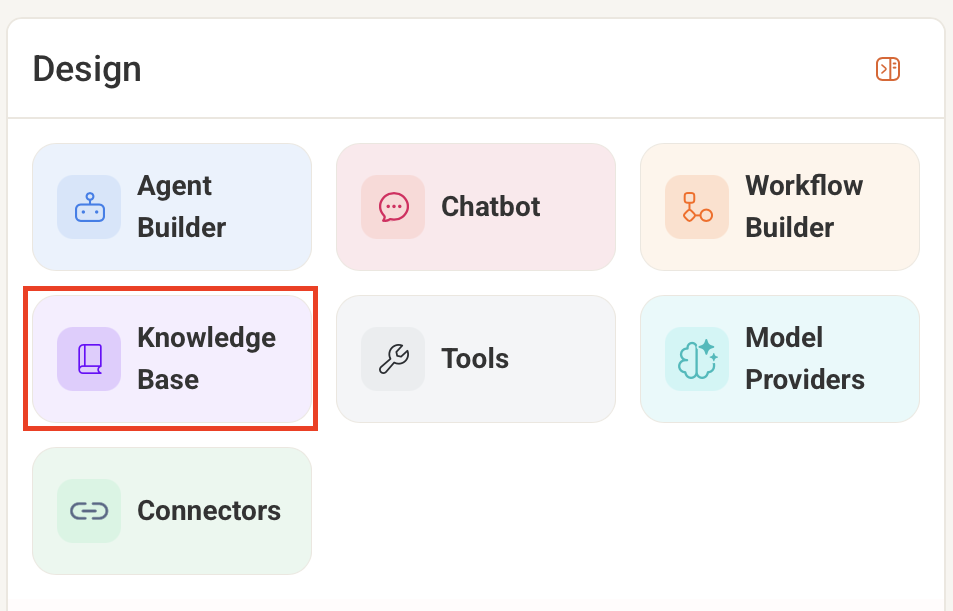
The listing page shows New Knowledge Base button, a search here field, and cards showing all of the available knowledge bases.
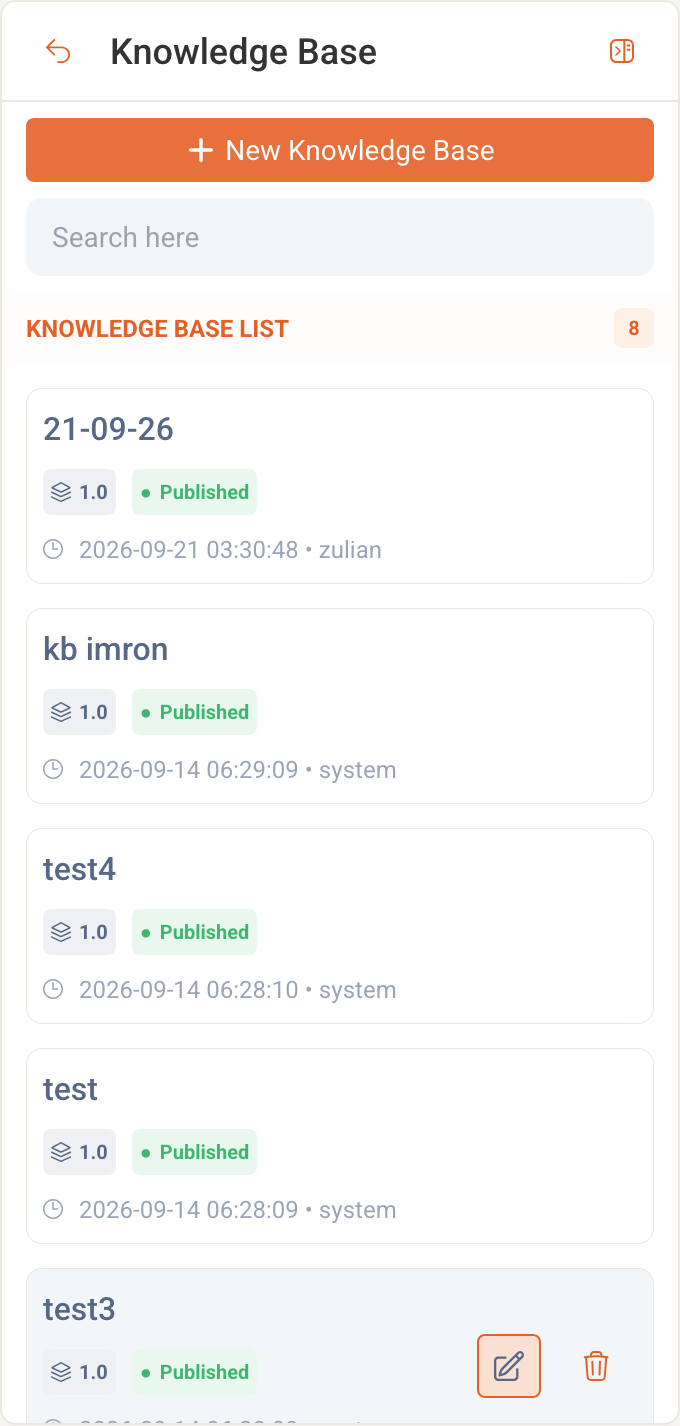
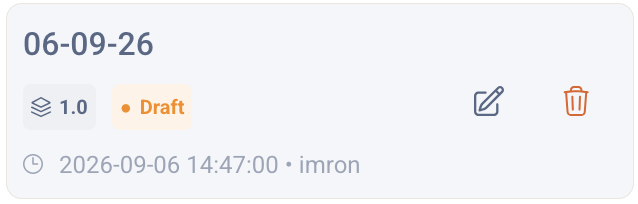
Each Knowledge Base card displays:
- Name — the Knowledge Base name
- Version — the current version of the Knowledge Base
- Status —
PublishedorDraft - Timestamp & author — last updated time, and the author
Create a New Knowledge Base
Click New Knowledge Base on the Knowledge Base listing page, it will then shows the New Knowledge Base form.
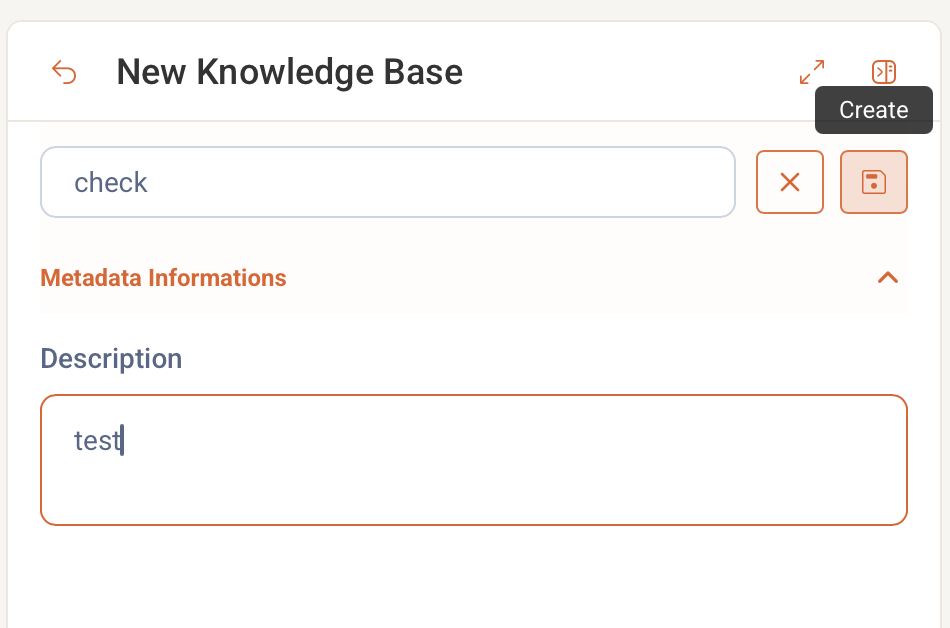
user will then needs to fill the Knowledge Base Name and Description field. The user then can click the create icon and afterwards use the publish button to publish the Knowledge Base.
Edit a Knowledge Base
In this page, user can edit a specific Knowledge Base's name, description, and document related actions.
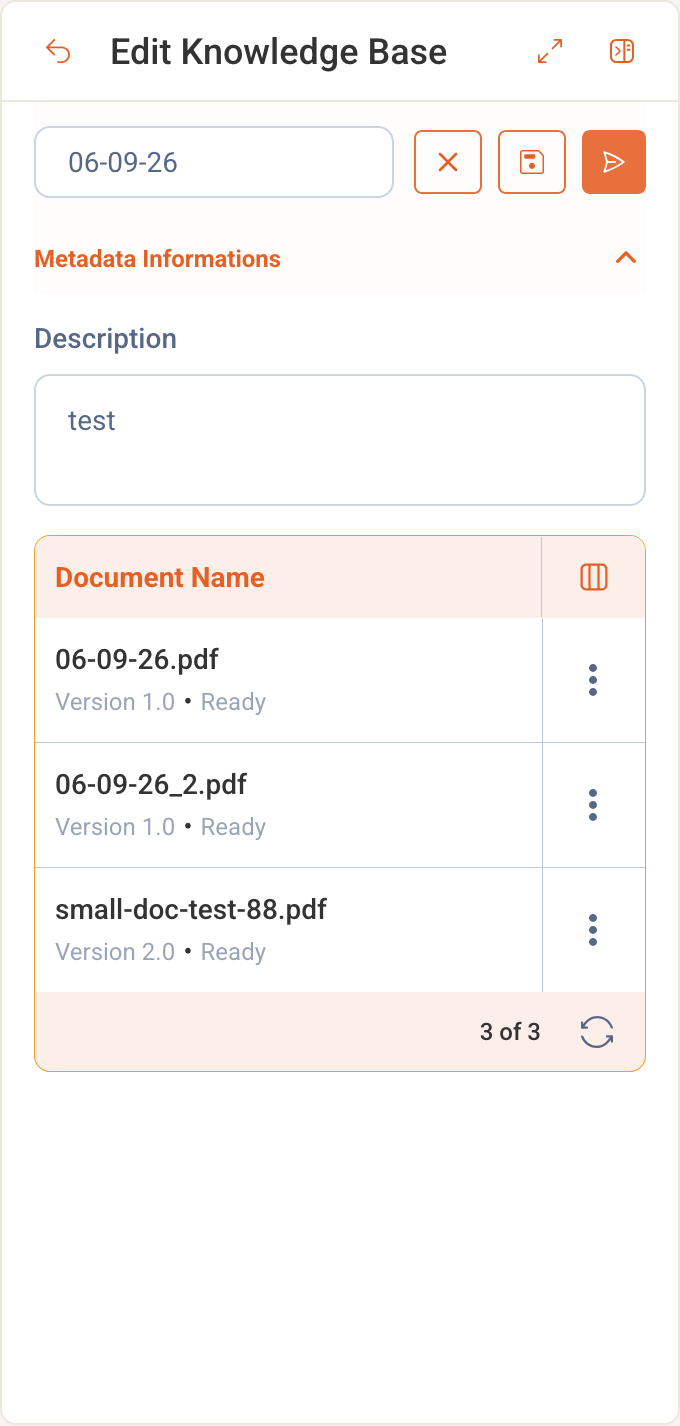
To edit a Knowledge Base:
- Hover over a knowlege base card.
- Click the Edit (pencil) icon on the right side of the card.
- The Edit Knowledge Base form opens pre-filled with the Knowledge Base's existing data. Update the fields the same way as in Create a New Knowledge Base.
- Click Save to save the changes as draft.
- Click publish to apply the saved changes.
